
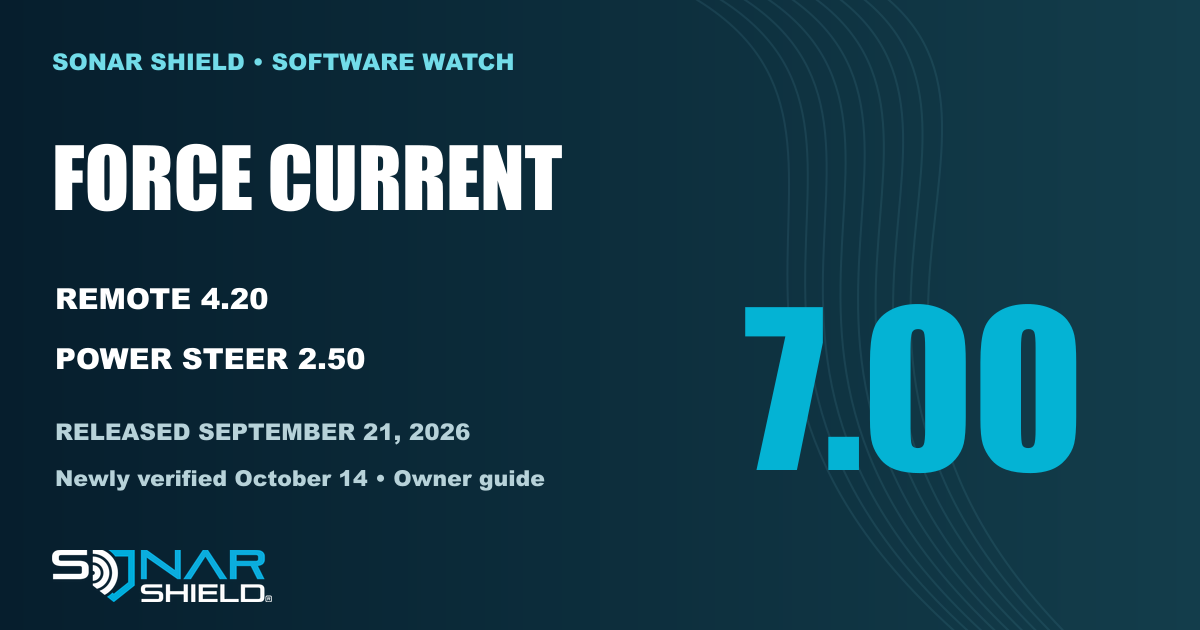
Release date: September 21, 2026. Newly verified in this workflow: October 14, 2026. Garmin's individual Force Current history now agrees with the marine update bundle at version 7.00. This is a catch-up owner guide for an existing release, not an announcement that new firmware arrived today.
What the release notes actually say
The official Force Current change history lists general bug fixes and improvements for the move from 2.70 to 7.00. It also lists remote version 4.20 and Power Steer Foot Pedal version 2.50. Garmin does not describe individual motor fixes in that entry, so we are not assigning an undocumented symptom or performance claim to this release.
Bow Lock appears in the earlier 2.50-to-2.70 entry. It should not be presented as a newly introduced 7.00 feature. That distinction matters when an owner compares what their system already does with the changes in the update.
Check the complete system, not only one version
Use the exact model names when you look up software. Force Current uses the Power Steer pedal; a version for another Force family's regular foot pedal is not the same component. The individual Power Steer history was also checked directly in Garmin's live browser page and shows 2.50 dated September 21. The remote history shows 4.20.
Before starting, write down which motor, remote, pedal and connected display you own. Keep that short equipment list with the versions you can see in the system. It makes a later comparison much clearer than a note that only says “updated.”
Choose the official update route
The Force Current owner's manual describes two routes: the ActiveCaptain app prompts for available software when connected to the motor, and a connected Garmin chartplotter updates the motor when the chartplotter's software is updated. Follow the instructions and prompts for the route you actually use.
- Open the correct model guidance. Confirm that it is Force Current and read the current update directions before starting.
- Use your connected route. Follow the available ActiveCaptain prompt, or the official marine software process for your connected Garmin chartplotter.
- Allow the process to finish. Follow every on-screen instruction and completion message. Do not treat a download as proof that the equipment has installed it.
- Check the result. Compare the motor and connected component versions with the current official histories. Record what completed and any component that still needs attention.
This checklist organizes the job; it does not replace Garmin's model-specific installation instructions. For card-based chartplotter updates and compatible devices, use Garmin's marine software hub.
Make the next trip a clear comparison
Keep a short before-and-after record: update date, installed versions and any behavior you wanted to revisit. If a question remains, describe that observed behavior and your exact equipment when contacting Garmin support. Avoid changing several unrelated settings simply because software was installed; it makes the comparison harder to explain.
A version match is useful evidence of the installed software. It is not a promise that every setup or concern has been resolved. Garmin's published notes are the basis for what this guide says changed.
Keep the accessory choice model-specific too
If you are organizing your marine electronics between trips, browse Sonar Shield accessories by your exact equipment. Match each product to its listed fit and application. We are not claiming that an accessory changes motor firmware, software behavior or Garmin compatibility.
This independent owner guide uses official Garmin sources. Sonar Shield is not Garmin, and this article does not imply manufacturer endorsement.
Created with AI assistance using Sonar Shield's topic direction and research from the sources cited in this article.