
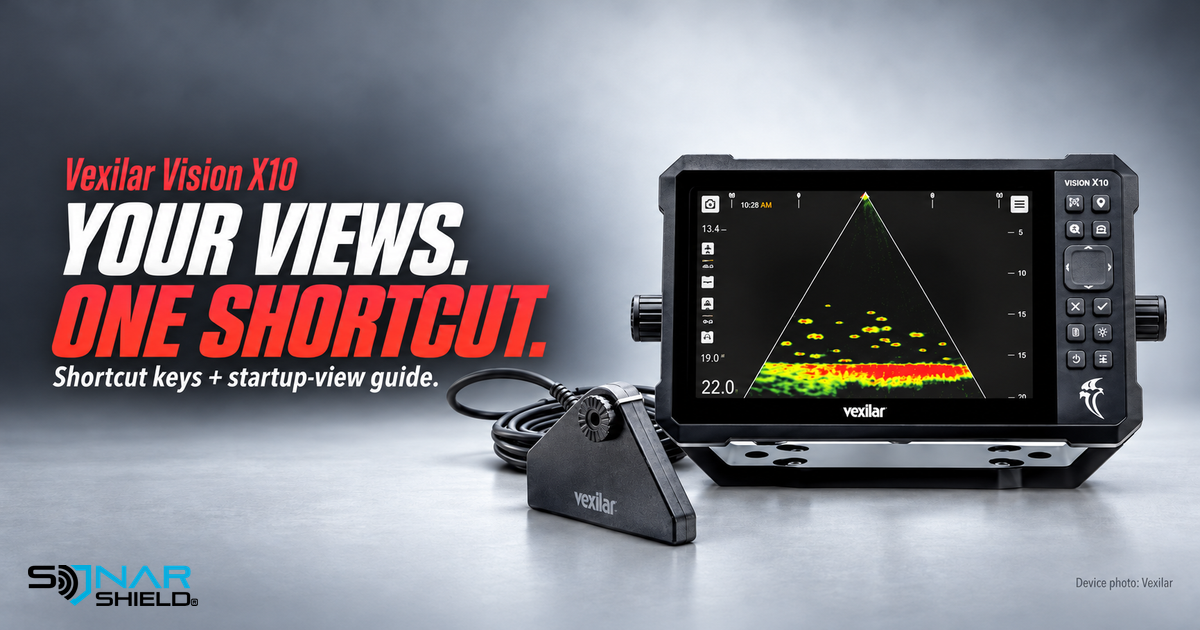
Make familiar views easier to reach
The Vexilar Vision X10 combines a touchscreen with physical controls. Once you know which view or function you return to, its assignable shortcut keys offer a practical next learning step. This is an additional settings guide, separate from our earlier forward/down and update overview. We did not verify a newly released exact X10 firmware version today.
The documented shortcut path
The official X10 manual places key assignments under Home > SYSTEM SETTINGS > PREFERENCES. Use the key 1 drop-down to choose an application or function, and repeat for keys 2–4 as needed. Its startup-screen control is in the same preferences area: choose STARTUP SCREEN > SELECT VIEW, select the application and finish with DONE.
The manual separately warns that wireless screen casting disconnects active Sidekick connections. If those functions are part of your setup, read that section before treating casting as something that runs alongside everything else. These are manufacturer instructions, not observations from our own equipment.
Choose the task before the shortcut
Our original suggestion is to write down the application or action you repeatedly seek. Learn what it does first. A shortcut is helpful when it makes an understood task easier to reach; assigning several unfamiliar functions at once can make the control layout harder to remember.
Begin with one key. Record the previous assignment, select a supported function and confirm what that key now opens. Leave the other keys alone until the first choice feels familiar. If another person uses the unit, explain the assignment so the shortcut does not become a surprise.
Build a small reference card
- Write each key number and its selected application or function.
- Keep the note with your own equipment information.
- Record the startup view separately from the keys.
- Revise the note whenever you intentionally change an assignment.
This is a simple organization exercise. It does not promise better fish detection or a higher catch rate. Its purpose is to make your own choices easy to explain and repeat. If the menu differs, use the applicable manual and installed software rather than copying the path from a different sonar brand.
Keep changes easy to compare
Do not combine this control-layout exercise with several sonar-image adjustments. First learn where your chosen action is; then compare image controls as a separate task. That separation makes it easier to understand whether a difficulty is about finding a view or interpreting the view itself.
If you want to keep a useful observation for later, consult the manual's media section and record where the unit saves it. A saved file is more useful when you also remember the view, conditions and question behind it. We have not used an invented sonar capture as evidence of performance.
Use exact-system information
Review Vexilar's official Vision X10 product information for the current system and available configurations. For accessories, check actual Sonar Shield model listings; this guide does not assert that an X10-specific cover is available. Which function would you assign to your first shortcut?
Device image credit: Vexilar. Graphic layout created with AI assistance from the manufacturer product reference.
Created with AI assistance using Sonar Shield's topic direction and research from the sources cited in this article.