
Released October 6, 2026. By Gregg Smith.
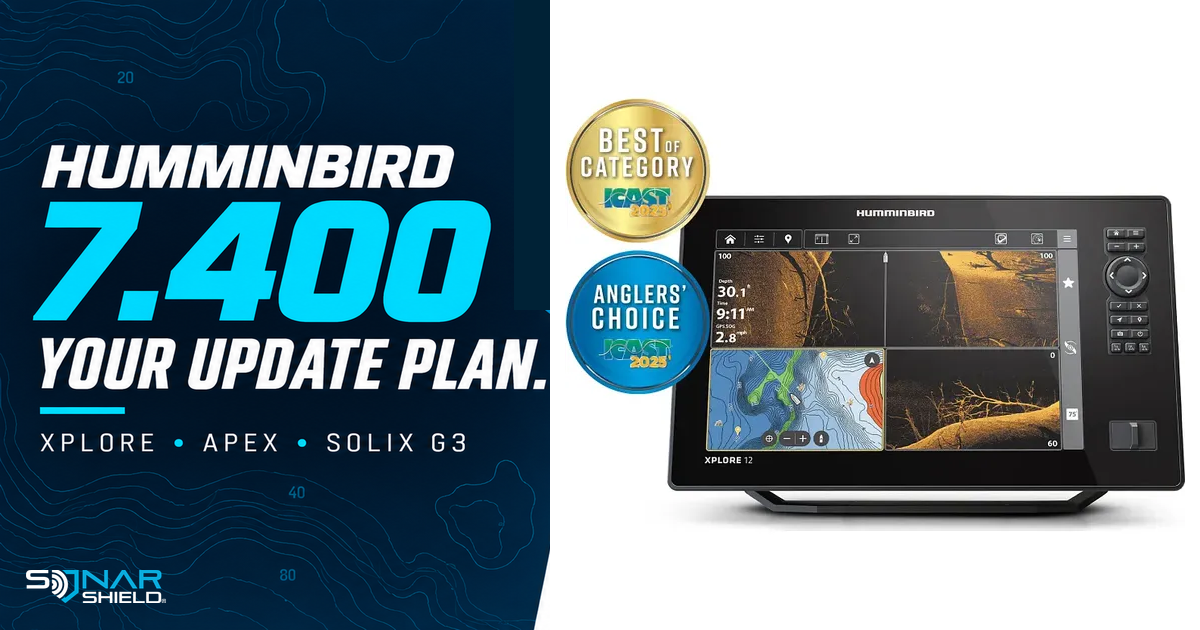
Software 7.400 is a substantial update for selected Humminbird displays. The release adds connected-system features and fixes, but the update path and settings changes deserve attention before you begin. This guide covers the officially listed XPLORE, APEX and SOLIX G3 families. It does not apply those instructions to every HELIX or older SOLIX.
Start with the release notes for your display
Open the exact family page: XPLORE 7.400, APEX 7.400 or SOLIX G3 7.400. XPLORE notes cover the 9, 10 and 12 families; APEX notes list the 13, 16 and 19 VX/CHO variants; SOLIX G3 notes list the 10, 12 and 15 G3 variants. Compare the complete model identifier, not just screen size.
What changes
The notes describe wireless motor integration, Draw & Navigate and Intelligent Depth Control for compatible systems. They also add 3D contour options, engine-gauge support and NMEA 2000 cross-track-error PGN 129283. MEGA Live 2 Sonar Sync requires the relevant sonar update as well as display software.
Published fixes include MEGA Live 2 digital-depth behavior, Follow the Contour reverse/offset operation, Circle behavior, Navionics Plotter Sync, My Data filtering, keypad behavior and a MEGA 360 side-imaging message. Use the complete change list for the equipment actually connected to your unit.
The staged software path
6.090 → 6.120 → 7.400. The release notes require 6.090 before 6.120, and 6.120 before 7.400. If your installed software is older, work through the manufacturer's prerequisite instructions. Do not treat the newest download as a shortcut around the intermediate stages.
For Wi-Fi updates, reconnect to Wi-Fi between stages as instructed. Check the installed version after each completed stage so that the next step starts from a known point.
Record settings before the update
The notes state that defaults are restored and settings from older software cannot be imported into 7.400 or later. Photograph the views, layouts and settings you want to recreate. Use the manufacturer's supported procedure to back up user data; a settings photo is not a waypoint backup.
This display reset is separate from the owner FAQ's statement that settings carry forward when the One-Boat Network app becomes the Minn Kota Fishing App. An app migration and a display firmware update are different operations.
Wi-Fi installation route
- Verify your display model, current version and all prerequisites on its linked release page.
- Prepare the required user-data backup and record settings before changing software.
- Open Home → Network + Devices → Wi-Fi Updates and connect as instructed.
- Open Network + Updates → Check for Updates. Select the appropriate update or Update All Now only after checking the required components and sequence.
- Keep the system powered through the process. Reconnect and repeat the documented staged path where required.
- After completion, verify the installed version, recreate settings appropriately and check your usual views and connected equipment.
The release pages also describe card-based installation. Use the exact download and card procedure on the current model page, remove other mapping cards when instructed, and do not interrupt power or remove the update card during installation.
Accessory prerequisites and a documentation mismatch
The display pages list original MEGA Live 1.320, MEGA Live 2 2.270, TargetLock 1.210, i-Pilot Link 1.440, Raptor 2.040 and Talon 2.020 among relevant accessory requirements. These are component-specific; owners do not need an accessory they do not have.
The motor prerequisite is unresolved in the launch-day documentation. The display list names Advanced GPS package 2.780/controller 2.750, while the dedicated motor release page names package 2.770/controller 2.760. We cannot verify that one satisfies the other. For a setup affected by this discrepancy, resolve the required combination through the current manufacturer instructions or support before choosing a file.
Make the first check a familiar one
Our practical suggestion is to start with the same chart and sonar views you normally use, in a familiar setting. Confirm that the expected devices are present before exploring a new navigation feature. Record an observation before changing several controls; this makes any support question more precise.
Keep your equipment information together
Save your exact model, installed versions and the date of the update with your boat information. For between-trip accessories, browse Sonar Shield covers, visors and accessories by the actual model on your boat. Software compatibility and physical accessory fit are separate checks.
Independent Sonar Shield guide checked October 6, 2026. Features and procedures below are based on the linked manufacturer documentation; use its current instructions for your exact hardware. Official product imagery: Johnson Outdoors.